Smart Power Strip 13A
Wi-Fi smart Power Strip
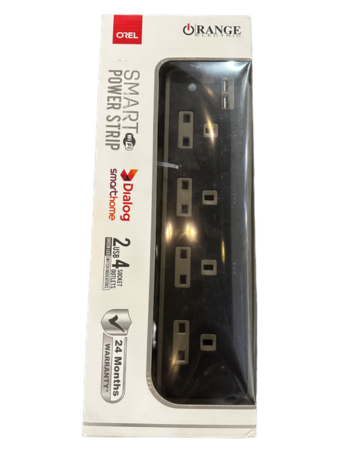
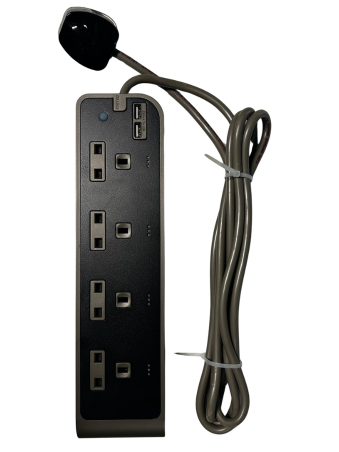
Smart Power Strip 13A
Wi-Fi smart Power Strip
Features
- 4 Socket Outlets and 2 USB Ports
- 24 Months Warranty
- Schedule Smart, Live Free
- Always in control, Where You Are
- No Hub, No Hastle
Specifications
|
Rated Input |
: 250 V~, 50/60 Hz |
|
Outlet Rating |
: 13 A (Max) |
|
USB Port Output |
: 5 V 4.2 A |
|
Power Consumption at idle state |
: <0.7 W |
|
Mounting Center Distance |
: 160 mm |
|
Warranty Period |
: 2 years |
|
Materials |
: Polycarbonate, nylone (flame retardant), stainless steel, brass |
|
Supported Wireless Protocols |
: Bluetooth, Wi-Fi 2.4 GHz |
|
Compatible Mobile Apps |
: Dialog Smart Home |
|
Coverage |
: 30 m (line of site) |
|
Plug |
: 13 A fused plug top |
|
Input Wire |
: 3 m (3x1.5 mm2 cable) |
|
Dimensions |
: 320×80×40 (mm) |
|
Colour |
: Matte black |
|
Applications |
: Residential, hotel, general purpose |
USING THE SMART POWER STRIP
On the main control page, you can :
- Turn on/off all the plug sockets
- Turn on/off individual plug sockets
- Change the smart power board settings
- Rename the plug sockets
- Access the options menu

DOWNLOAD & INSTALL THE APP
- Search for the "Dialog Smart Home" App in App Store or Google Play Store and install the app
- Input account name and password to log in. If you don't have an account, please register an account with email address or mobile number

ADD NEW DEVICE
Device Preparation
- Press and hold the master button on the power strip until the light flashes.
In app operation
- Connect your phone to local Wi-Fi
- Tap "+" icon in the upper right corner of the app to add new device, then, choose the corresponding device
- Follow the app instructions to complete the adding process
HOW TO CHANGE WIFI FROM 5.0 TO 2.4 Hz
- It is recommended that you log in to the router's background to select the router's frequency mode, open the router management page (usually on the label on the bottom of the router marked with the address of the management page), select the 2.4 GHz.
TROUBLESHOOTING TIPS
- Please check whether the device is connected with power and your phone is connected with Wi-Fi
- Check routers : If the router is dual-band router, please select a 2.4 GHz network to add device
- If you have bought several switches and find that they can't connect at the same time, maybe the Wi-Fi router can't support enough devices. Try to add another router or reduce the Wi-Fi connection of other smart products
- Press the master button to switch on/off all four sockets at the same time, if the Wi-Fi connectivity is not available